Your next flight, at a glance.
Keep changing times, gates and flight status easy to find.
British Airways · BA178En route
JFK✈LHR
Arrival 23:04Terminal 5Gate B22
Illustrative flight · Live monitoring requires Plus or a Trip Pass.
Your journey, together.
Track your flights. Plan your arrival.
Keep your travel essentials together.
For iPhone, iPad and Apple Watch.
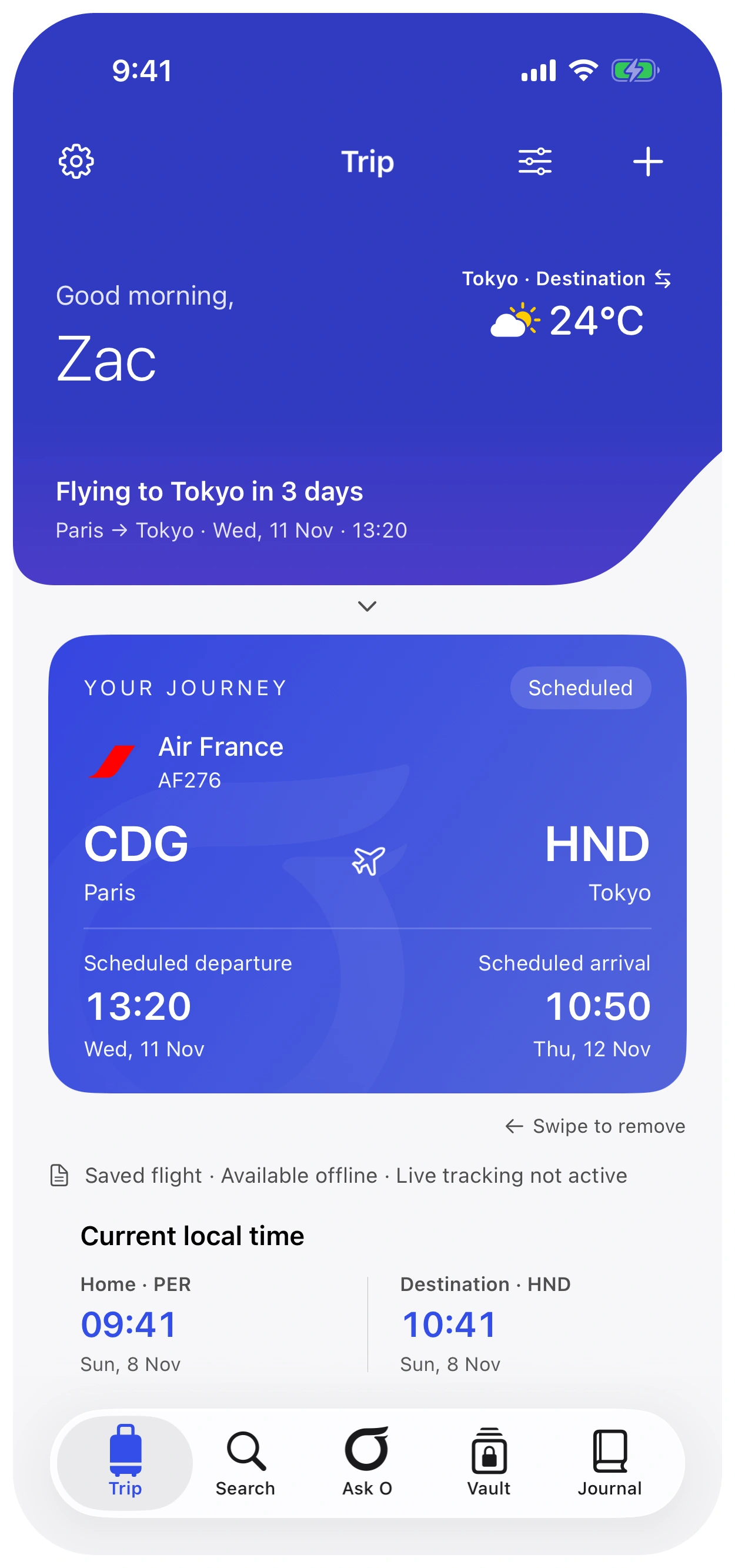
FROM TOUCHDOWN TO YOUR NEXT STOP
Your flight is only part of the journey. Bring your hotel, airport time and onward route into one clear view.
See how it comes together ↓LESS SEARCHING. MORE KNOWING.
Keep changing times, gates and flight status easy to find.
See how a later arrival could affect your next booking.
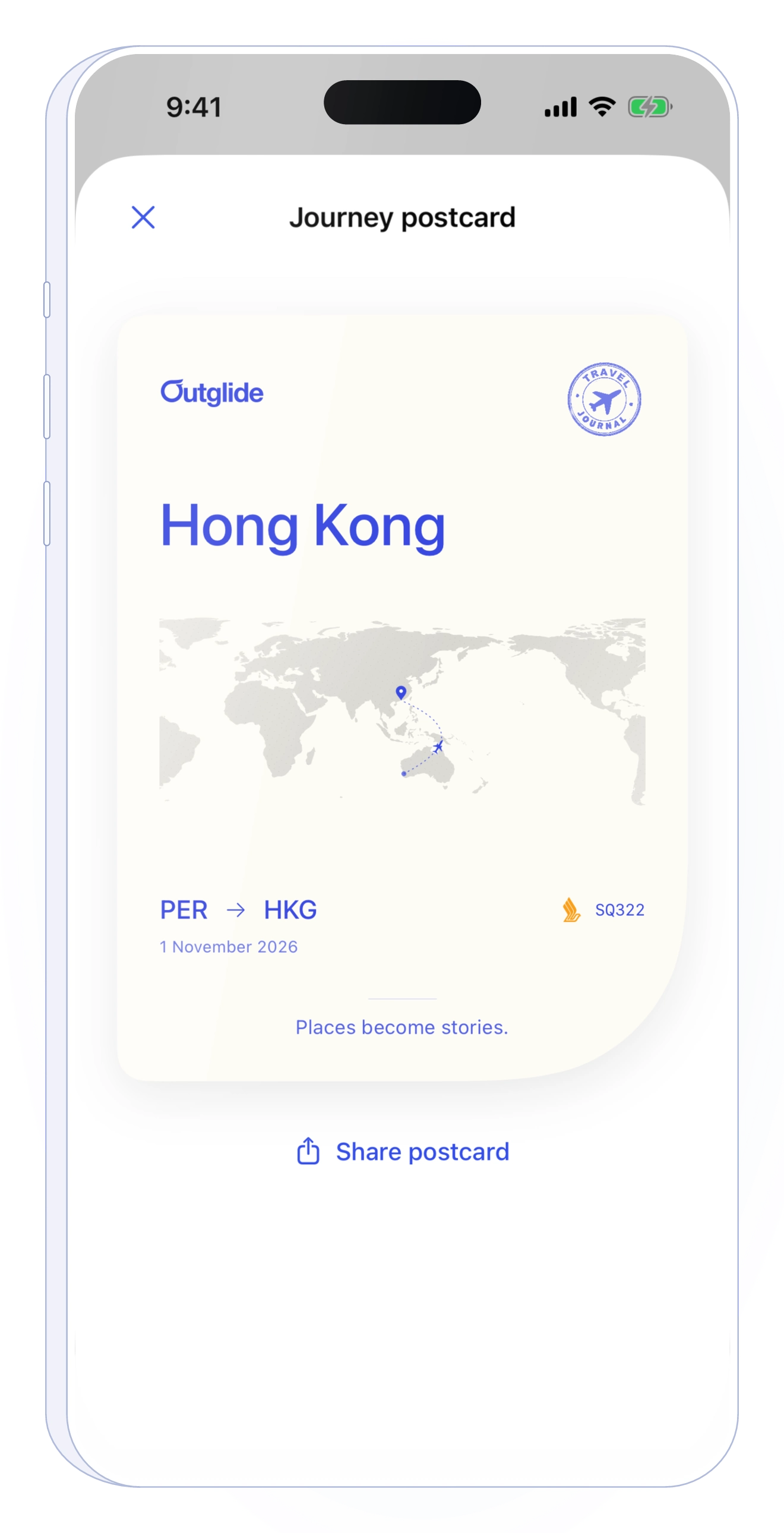
THE PART YOU KEEP
Save a place. Capture a moment. Turn your journeys into a personal travel Journal.
Your trips. Your colours. Your Outglide.A flight is only one part of your day. Keep it alongside the plans, reminders and details that go with it.
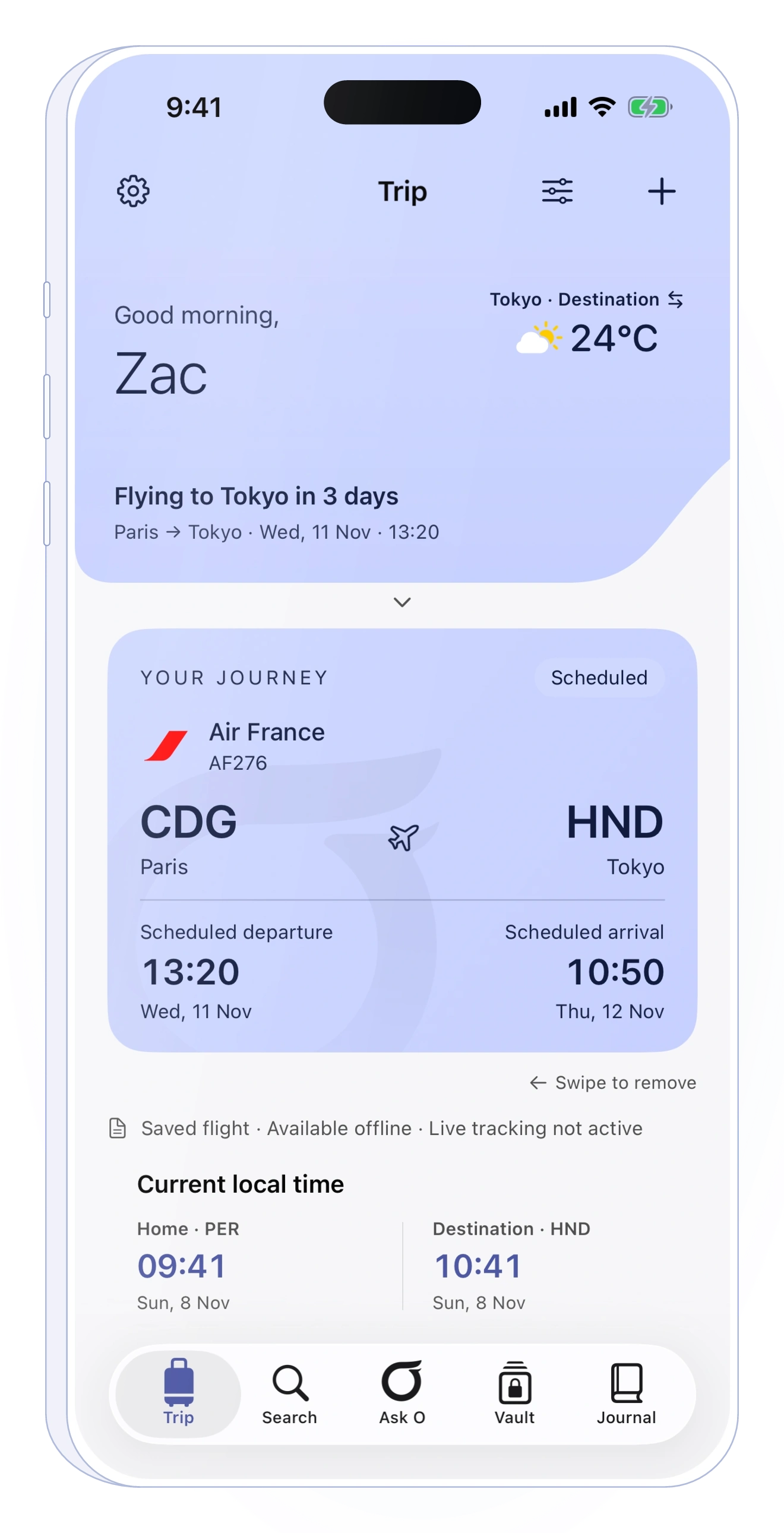
Find your flight, save the details and add the hotel, transfer or plans around it. Make a checklist for the things you still need to do.
Check departure and arrival times, gates and the latest available flight status. With live monitoring, follow eligible updates on your Lock Screen or Apple Watch.
Look back at your flights in Journal. Keep a photo, a place or a note you’ll want to find again, long after the journey is over.
See it for yourself
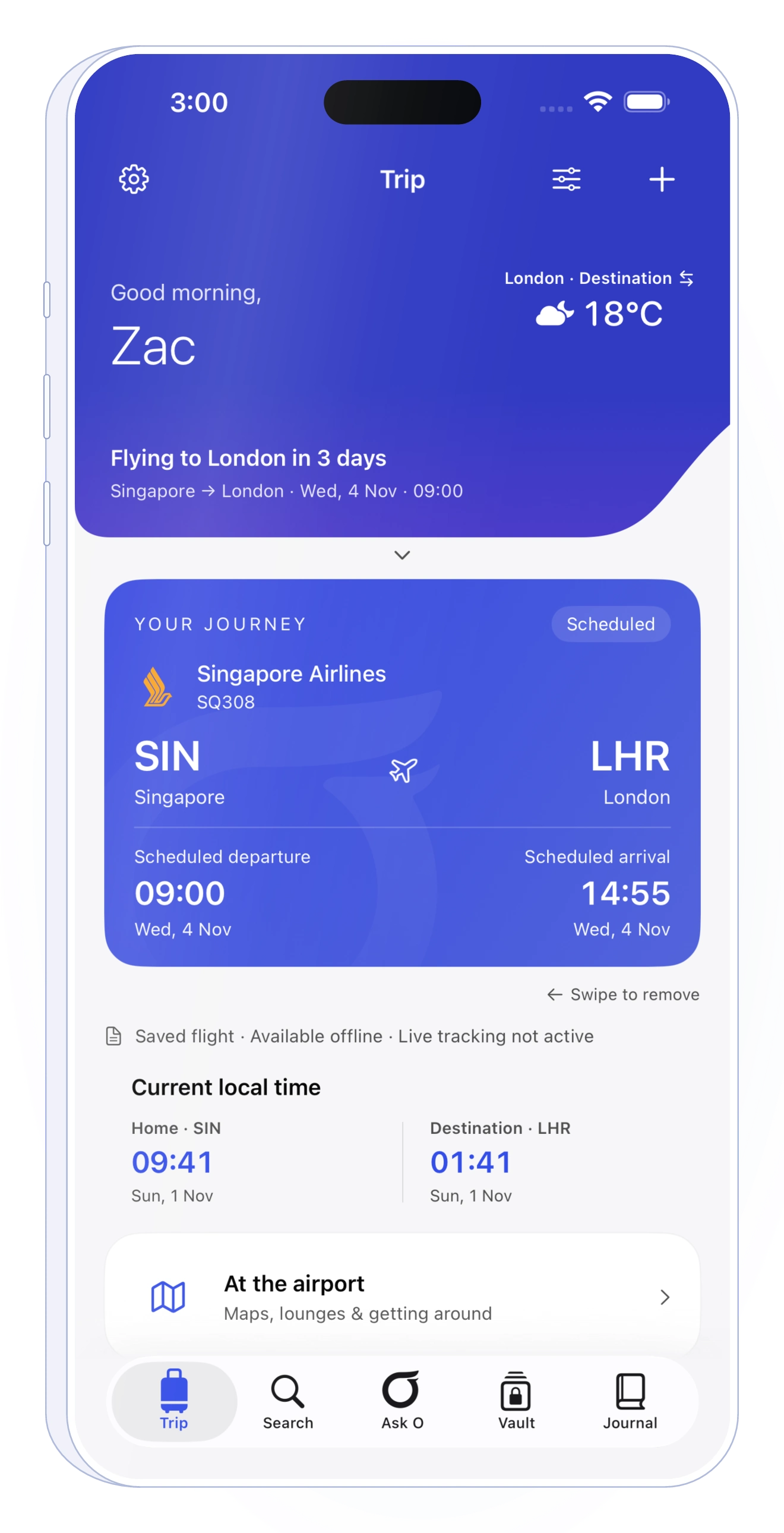
From the flight card to the aircraft’s latest reported position. Take a closer look, then keep the useful information in view on your Lock Screen or wrist.
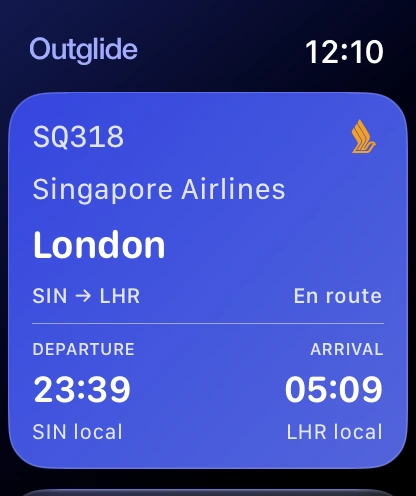
Check saved flight details on Apple Watch, with the latest available updates when connected.
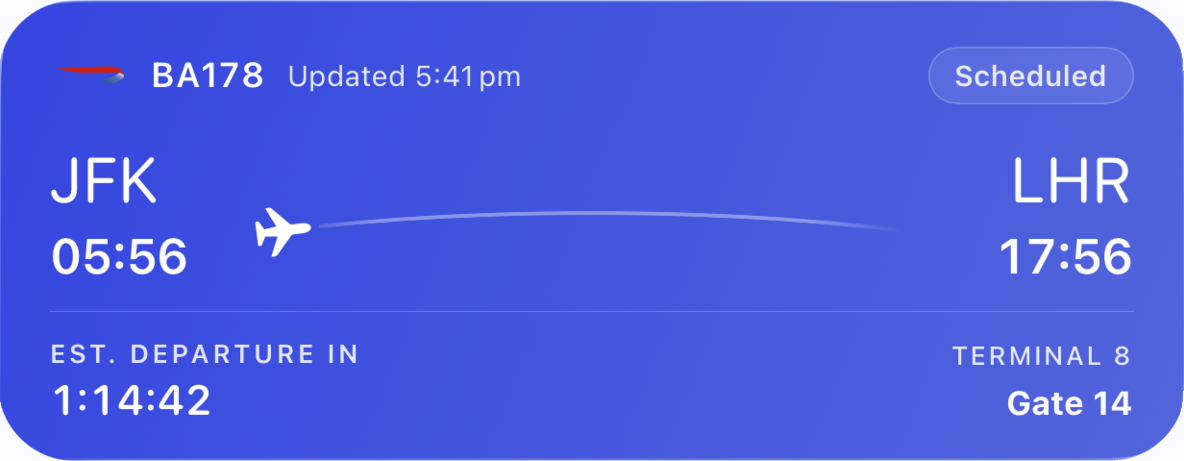
Keep an eligible flight in view with Live Activities. Home Screen widgets bring your trip, boarding passes and notes closer.
There’s room to plan on iPad, too.
Explore flight tracking for iPhone and Apple Watch →
Example screens. Live monitoring requires Plus or a Trip Pass. Watch and widget updates depend on connectivity and the latest available information.
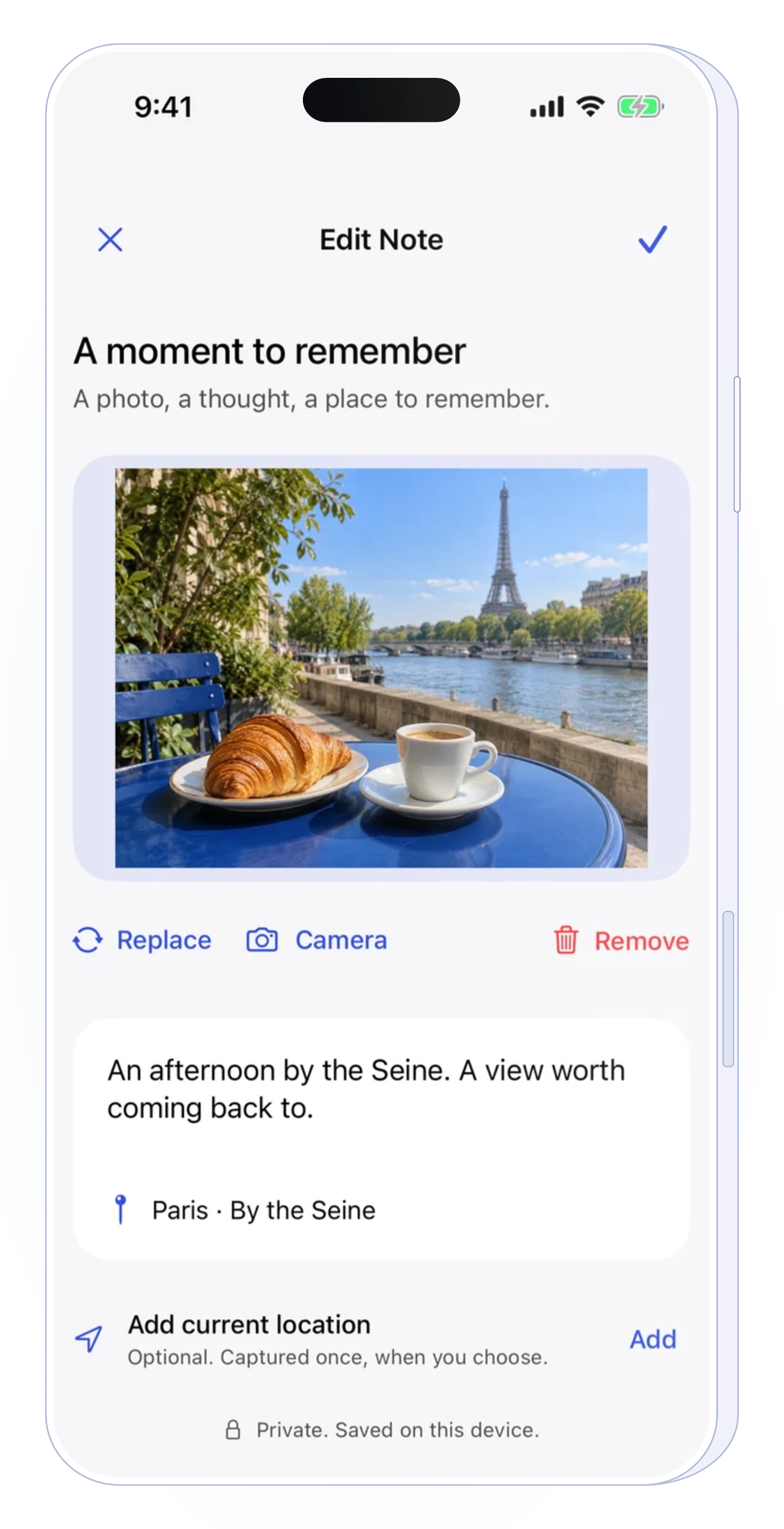
Your trip, your space
The café you want to come back to. The pickup point someone mentioned. Something you don’t want to forget.
Write a quick note, speak instead of typing, or add a photo and place. Use bold, italic or underline, and insert a checklist when it helps. Your notes are saved on your device.
Your journey. Your colours.
Soft pastels. Richer shades. Find the colour that feels right for your next journey.
Periwinkle
Six colours to try here. Discover more in the app.
Choose which sections appear on Trip and arrange them around the things you use most. A calm, considered design keeps your journey easy to follow.
Before you leave
Travel essentials is your reusable checklist for every trip. Add your own tasks, tick them off and set a reminder when you need one.
Keep your packing and preparation here. Checklists inside Notes stay with the note you create.
A little guidance
Looking for airport facilities, a way into the city or help understanding your flight?
Ask a question, then follow up naturally. Before cloud assistance uses selected trip information, you choose what to share. Passport records and portraits aren’t included.
Double-check important travel information with an official source.
Close at hand
Your journeys to look back on. Your travel essentials to find when you need them.
Completed flights stay in Journal. Create a postcard with your route and destination to keep or share.
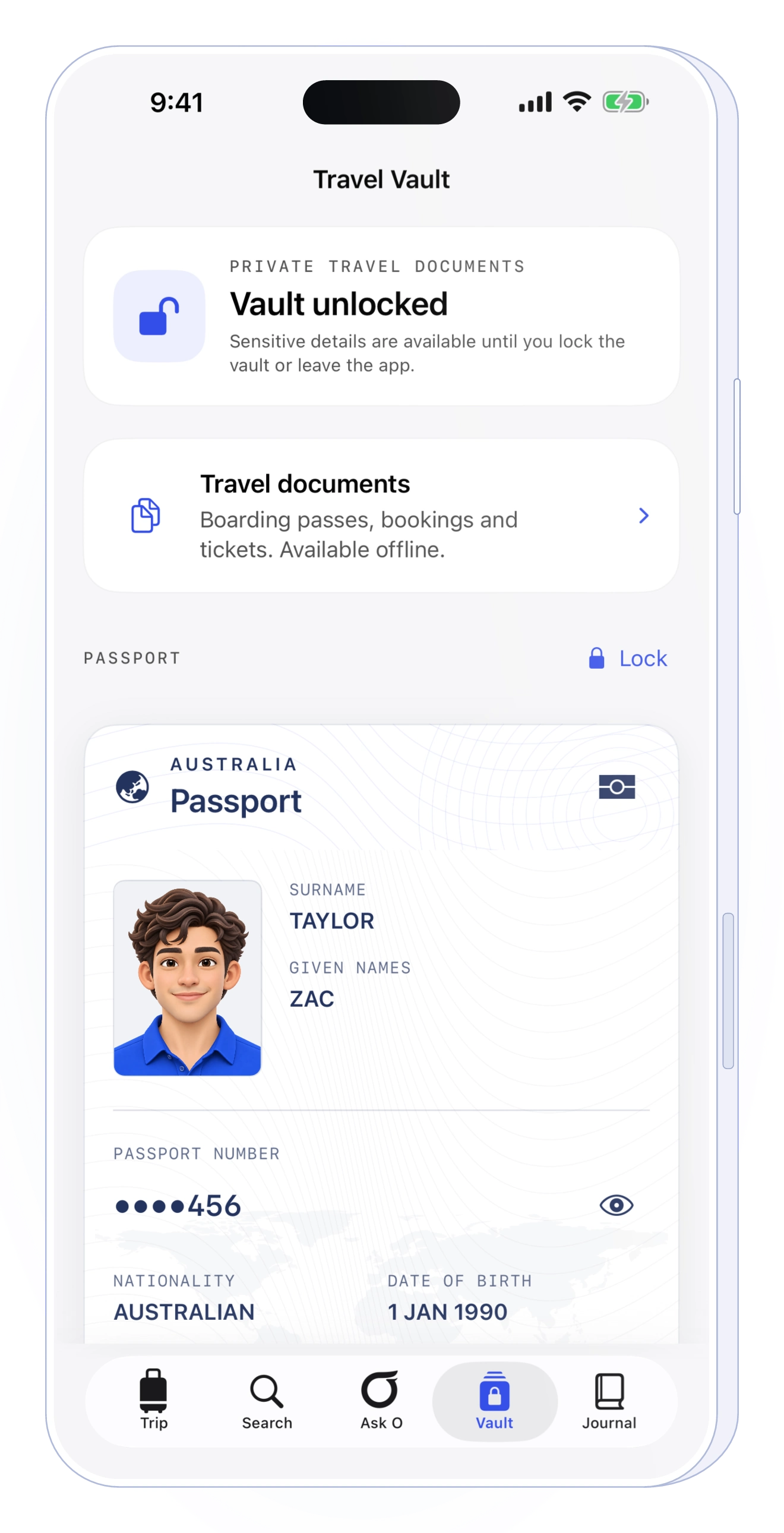
Keep boarding passes, confirmations and your passport record encrypted on your iPhone. Scan a boarding barcode or import a photo or PDF, then open your saved pass offline.
Explore offline travel documents →Three small steps. A journey ready to go.
Search by flight number and departure date.
Keep your flight close on your Trip page.
Bring in a transfer, a plan or a quick note.
Use Outglide for free. Add live monitoring when you want flight updates to stay closer to hand.
Outglide Free
Free to get started
Outglide Plus
Monthly or yearly subscription
Trip Pass
One-off purchase
Prices are shown in your local currency in the app before you buy. Plus renews automatically unless cancelled through Apple. You can manage or cancel it in your App Store account.
If there’s something else you’d like to know, ask us.
Save flights and travel plans, use Arrival Plan, write Notes, keep checklists and look back at completed journeys in Journal. Travel Vault is also included. Choose Plus or apply a Trip Pass when you want live flight monitoring.
Open Search, enter the flight number and choose its departure date. Use the date at the departure airport, especially for overnight trips. You can also save flight details manually if a flight isn’t found.
Your saved trips, Notes, Arrival Plans and Vault information remain available on your device. Fresh flight updates, live monitoring and cloud assistance need an internet connection.
Plus is a monthly or yearly subscription. A Trip Pass is a one-off purchase for one selected journey, with up to four covered flights within 30 days of its first departure. Review the flights and coverage shown in the app before you buy.
Updates depend on the available flight data and connectivity. Check the last-updated time in the app, and use your airline or airport as the source for important boarding, gate and travel decisions.
Notes are saved on your device. Travel Vault encrypts your saved passport record locally and uses device authentication to unlock it. Live services handle some account and flight information separately. Read the privacy policy for the details.
You can use saved trips, Notes, Arrival Plans and Travel Vault without an Outglide account. Sign in with Apple for live services, purchases and cloud Ask O. You review what information is shared before using cloud assistance.
Outglide is available for iPhone and iPad, with an Apple Watch companion. The App Store lists the current system requirements and device compatibility.
Manage or cancel Plus in your App Store account. Use Restore purchases under Settings → Your plan when needed. Apple handles App Store refunds. If something still doesn’t look right, visit Support or email Outglide.
Start with the flight. Keep the rest close.